

Table Upsert
Description
Section titled “Description”Combines insert and update in a single operation, keyed on one or more columns you designate as the match key. For each row in the source: if a matching row exists in the target (same key values), update it; otherwise, insert a new row.
Use this when you have an incremental data stream that includes both new records and revisions to existing ones — sales updates, employee record changes, or any “always reflect latest state” scenario. Specify match columns carefully: rows that share key values but differ in others will be overwritten, so a bad key choice can silently corrupt data.
Upsert Parameters
Section titled “Upsert Parameters”
To establish the source and target tables, first select the data table to be extracted from using the Source Table dropdown menu. Next, select an existing table as the target table using the Target Table dropdown.
Source Table Data Selection
Section titled “Source Table Data Selection”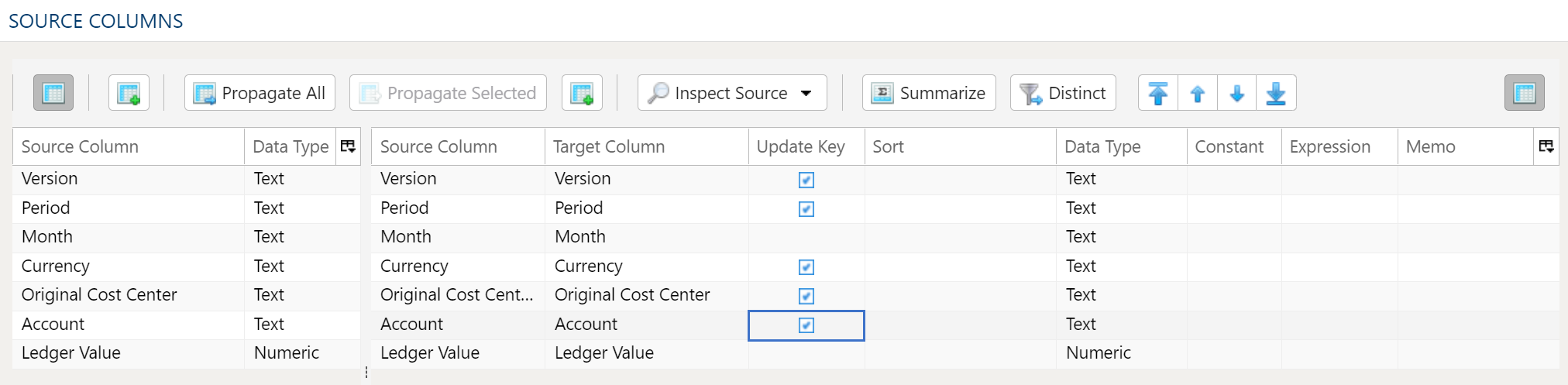
The Data Mapper is used to map columns from the source data to the target data table.
Inspection and Populating the Mapper
Section titled “Inspection and Populating the Mapper”Using the Inspect Source menu button provides additional ways to map columns from source to target:
- Populate Both Mapping Tables: Propagates all values from the source data table into the target data table. This is done by default.
- Populate Source Mapping Table Only: Maps all values in the source data table only. This is helpful when modifying an existing workflow when source column structure has changed.
- Populate Target Mapping Table Only: Propagates all values into the target data table only.
If the source and target column options aren’t enough, other columns can be added into the target data table in several different ways:
- Propagate All will insert all source columns into the target data table, whether they already existed or not.
- Propagate Selected will insert selected source column(s) only.
- Right click on target side and select Insert Row to insert a row immediately above the currently selected row.
- Right click on target side and select Append Row to insert a row at the bottom (far right) of the target data table.
Deleting Columns
Section titled “Deleting Columns”To delete columns from the target data table, select the desired column(s), then right click and select Delete.
Changing Column Order
Section titled “Changing Column Order”To rearrange columns in the target data table, select the desired column(s). You can use either:
- Bulk Move Arrows: Select the desired move option from the arrows in the upper right
- Context Menu: Right clikc and select Move to Top, Move Up, Move Down, or Move to Bottom.
Reduce Result to Distinct Records Only
Section titled “Reduce Result to Distinct Records Only”To return only distinct options, select the Distinct menu option. This will toggle a set of checkboxes for each column in the source. Simply check any box next to the corresponding column to return only distinct results.
Depending on the situation, you may want to consider use of Summarization instead.
The distinct process retains the first unique record found and discards the rest. You may want to apply a sort on the data if it is important for consistency between runs.
Update Key
Section titled “Update Key”The target columns grid has an Update Key column, right after the target column’s name. Tick it on the columns that together identify a row: a source row whose key values match a row already in the target updates that row, and any other source row is inserted.
Every column starts ticked, so untick the columns that aren’t part of the key. A column with no Update Key setting — one that Populate has just added, or one saved through the API without it — counts as a key. At least one column must stay ticked.
Source Data Filters
Section titled “Source Data Filters”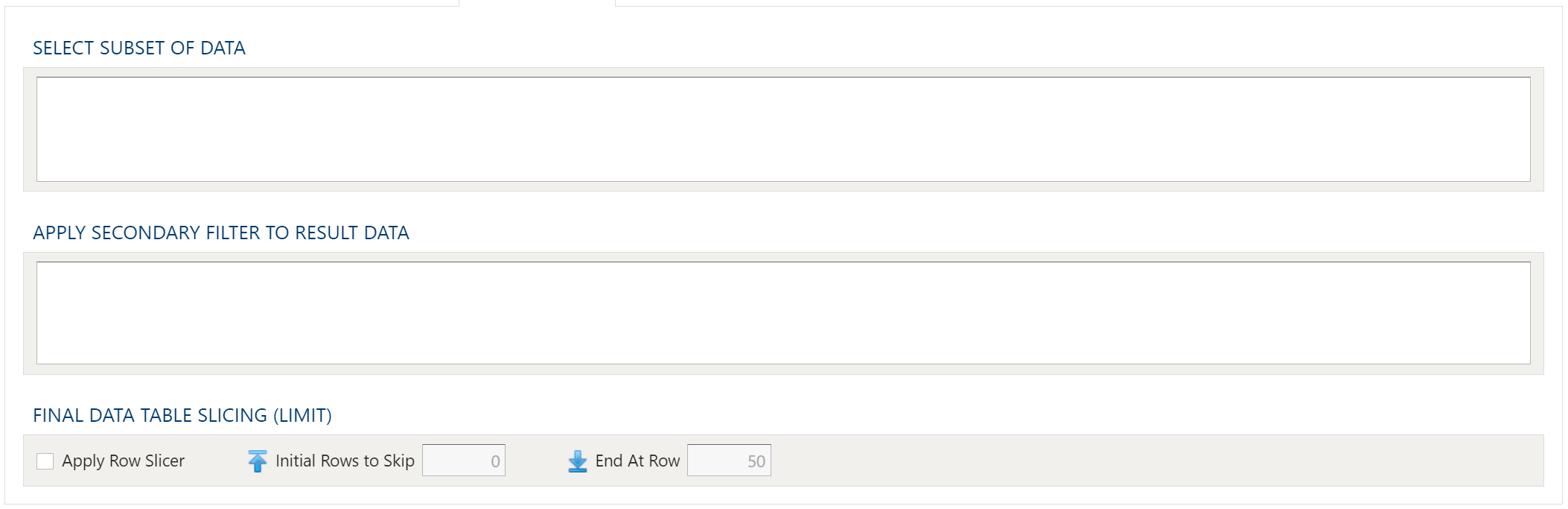
To allow for maximum flexibility, data filters are available on the source data and the target data. For larger data sets, it can be especially beneficial to filter out rows on the source so the remaining operations are performed on a smaller data set.
Select Subset Of Data
This filter type provides a way to filter the inbound source data based on the specified conditions.
Apply Secondary Filter To Result Data
This filter type provides a way to apply a filter to the post-transformed result data based on the specified conditions. The ability to apply a filter on the post-transformed result allows for exclusions based on results of complex calcuations, summarizaitons, or window functions.
Final Data Table Slicing (Limit)
The row slicing capability provides the ability to limit the rows in the result set based on a range and starting point.
Filter Syntax
The filter syntax utilizes Python SQLAlchemy which is the same syntax as other expressions.
View examples and expression functions in the Expressions area.
What’s Checked When You Save
Section titled “What’s Checked When You Save”- At least one Update Key. Otherwise saving is refused with At least one target column must be marked as Update Key.
- The mapping matches an existing target table. When the target table already exists, the step must map every one of its columns, map no column the table doesn’t have, and give each column the table’s type, so that an upsert can’t drop a table column, with its data, or change a column’s type. Numeric and currency count as the same type. The refusal names each difference, for example The target columns must match the existing target table ‘customers’. The table has columns the step doesn’t map: region. A target table that doesn’t exist yet, or one named with a variable, is checked when the step runs.
- An empty mapping is filled for you. Saving with a source table chosen but no source or no target columns fills the empty side from the source, as Populate Both Mapping Tables would.