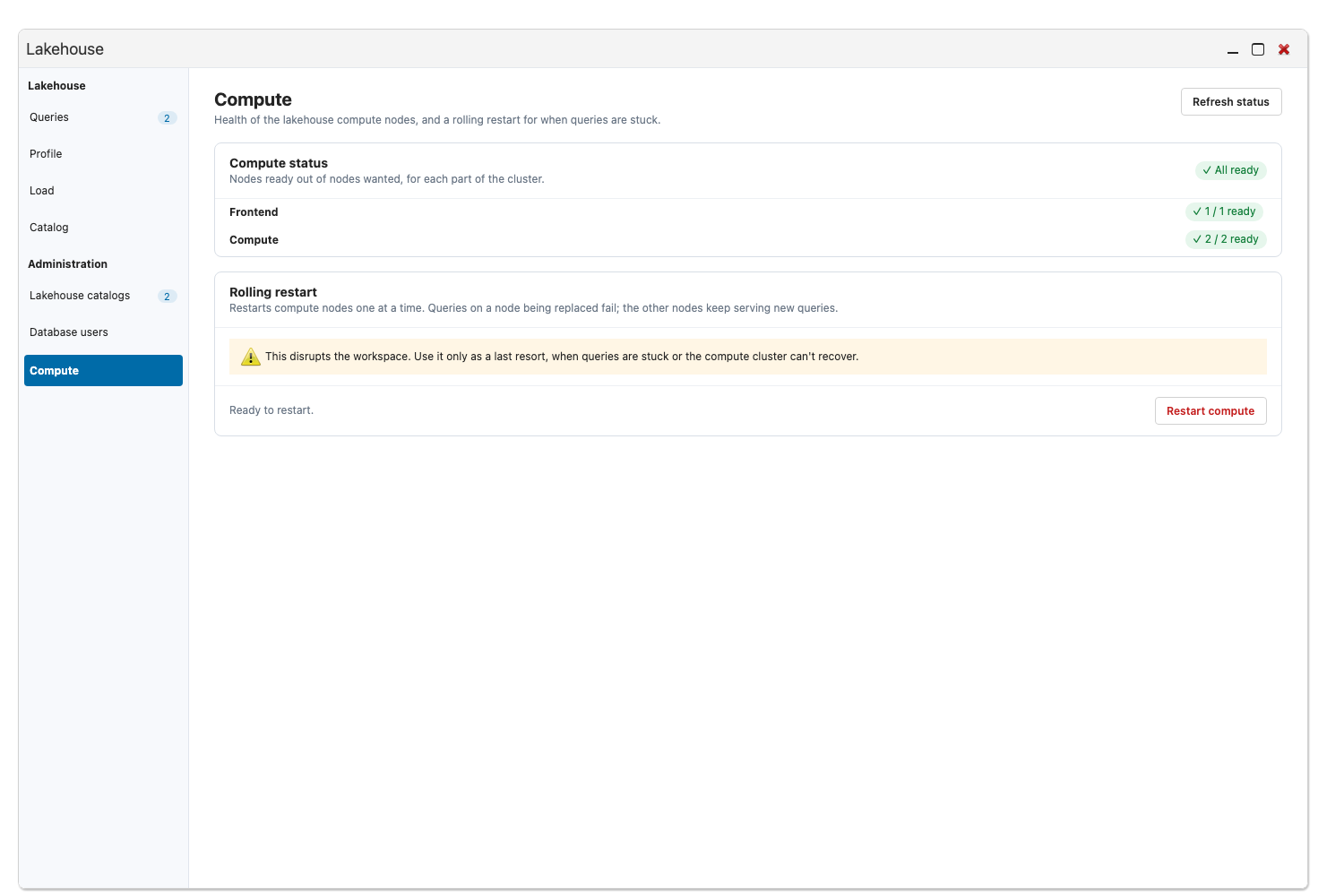
The Lakehouse Window
The Lakehouse window shows what is running on your lakehouse and how it is set up. In the Analyze app, click Lakehouse to open it; it is there for members who can read the lakehouse. A rail down its left side lists its pages.
| Page | What it shows |
|---|---|
| Queries | What is running now and what ran recently. |
| Profile | The plan and cost of a query. |
| Load | How busy the lakehouse is. |
| Catalog | The namespaces and tables of a lakehouse catalog, with each table’s detail. |
Under Administration, the rail lists Lakehouse catalogs, Database users and Compute. Database users and Compute show only to members who hold the Lakehouse admin role or the Lakehouse cluster role, so without the role the page isn’t listed.
Queries
Section titled “Queries”Running now lists the queries running on the lakehouse. Refresh every sets how often the list reads again while the window is open. Select a running query and click Stop query to end it.
History lists the last queries, newest first. Narrow it with Search SQL, Any user, Any kind and Any duration. Click Copy SQL to copy a query’s statement.
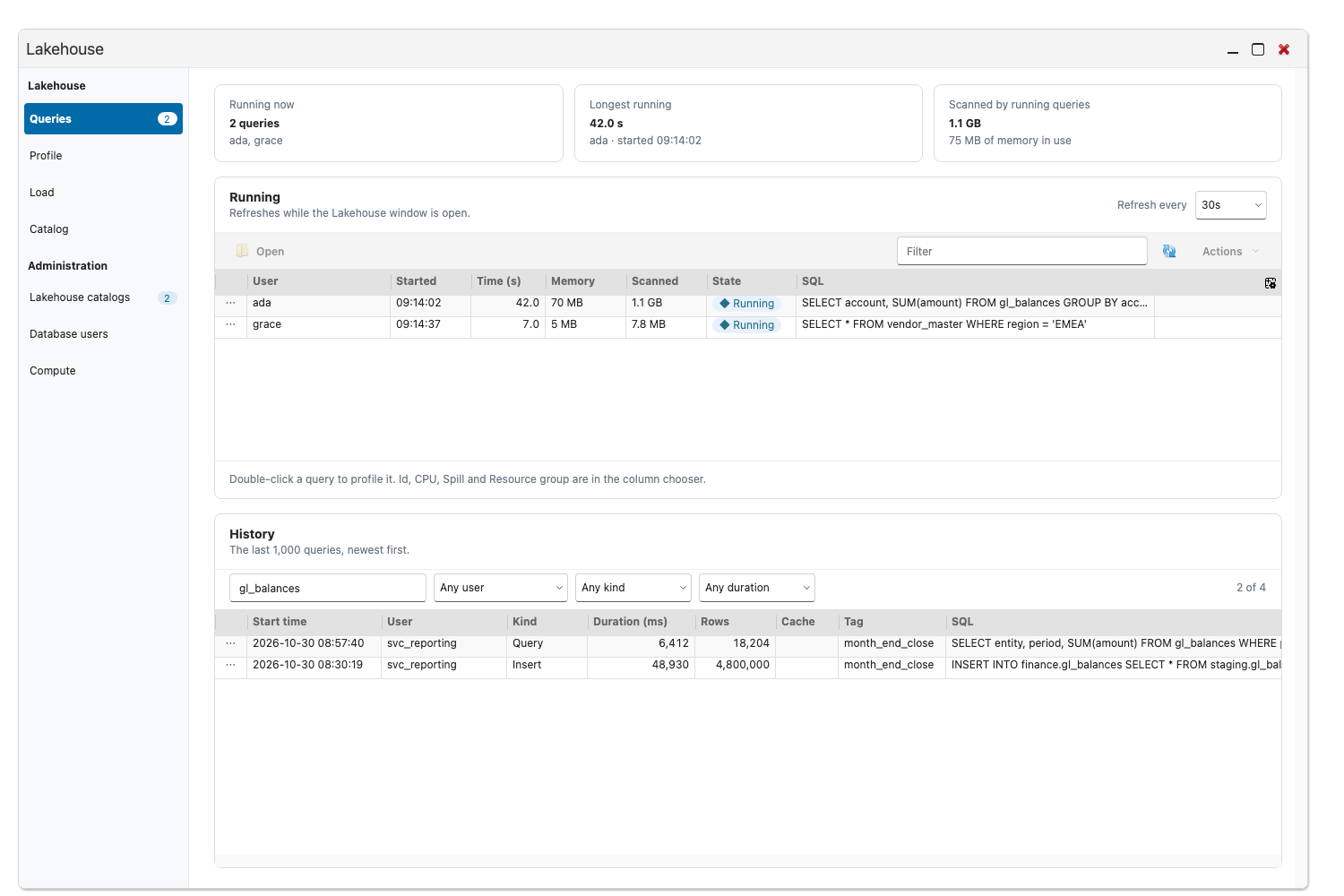
To see how a query ran, double-click it, or select it and choose Profile this query. The window opens Profile on that query’s plan.
Catalog
Section titled “Catalog”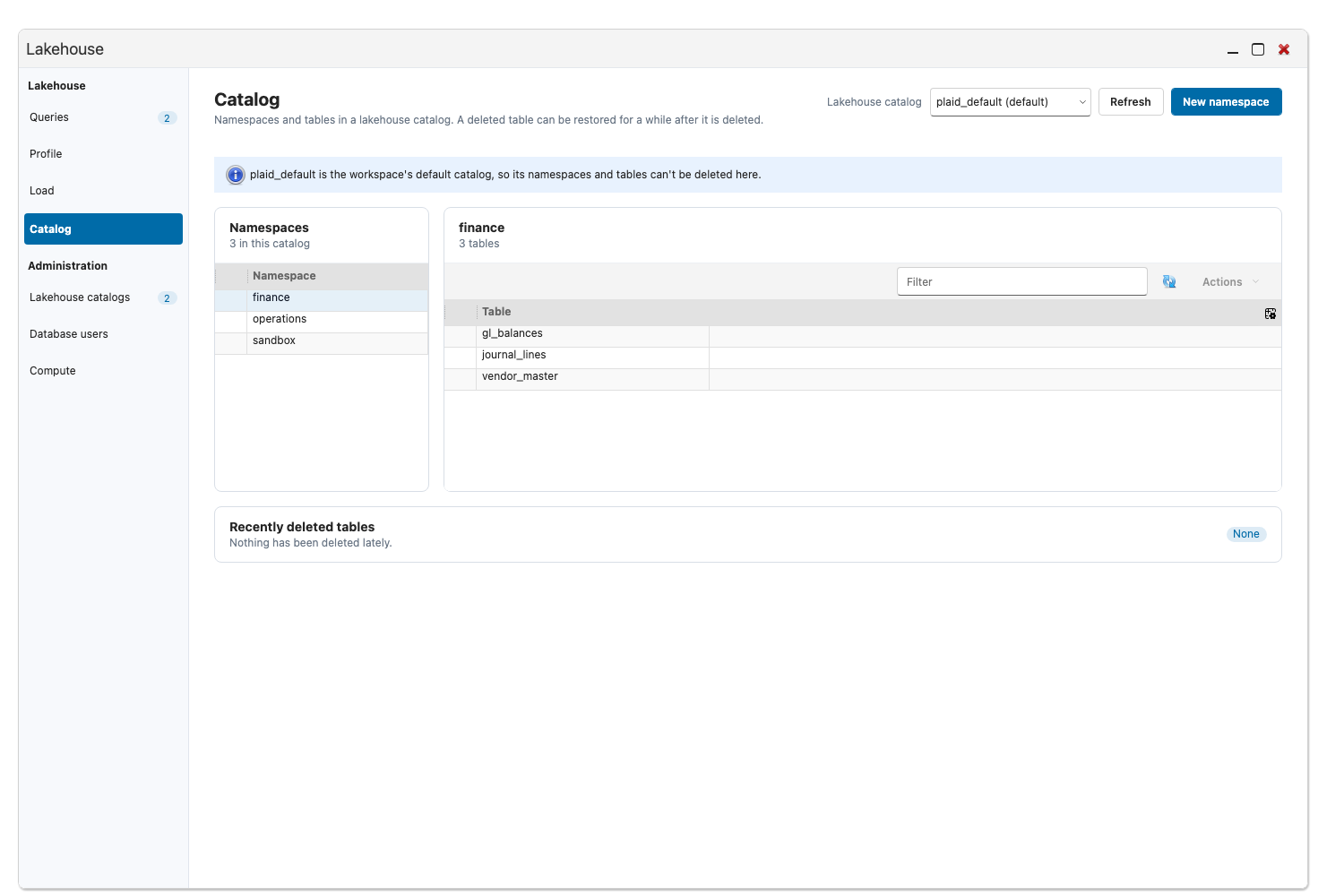
Catalog has a picker for the lakehouse catalog in its header. Choose a namespace to list its tables, then select a table to open its detail:
- Columns with each column’s type and whether it is required.
- The current snapshot’s rows, size and data files.
- Partitioning, Location and Properties.
- History, one row per snapshot with its time, the operation, and the Rows added and Rows removed.
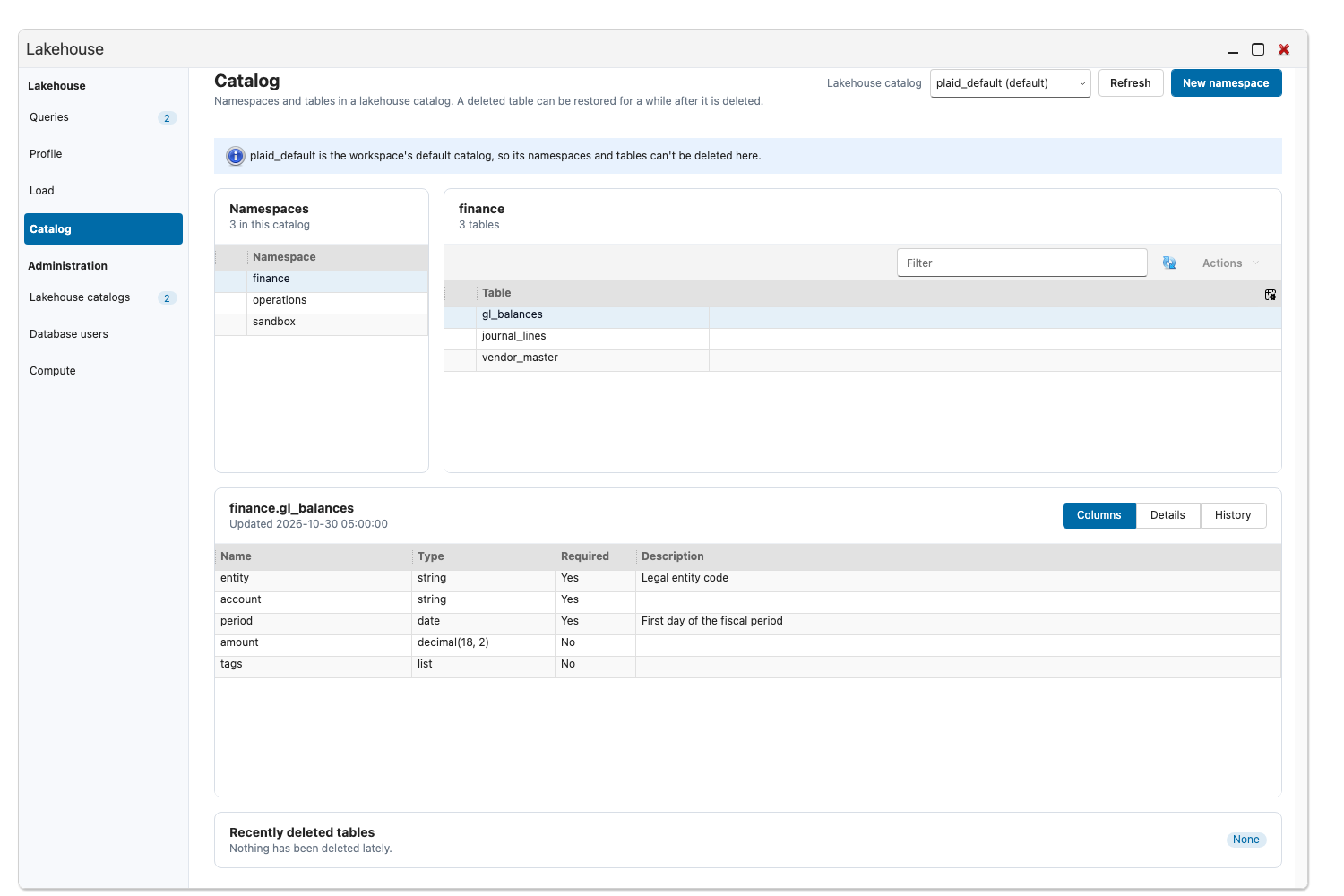
A figure the table’s metadata doesn’t hold shows —.
Copy a Time-Travel Query
Section titled “Copy a Time-Travel Query”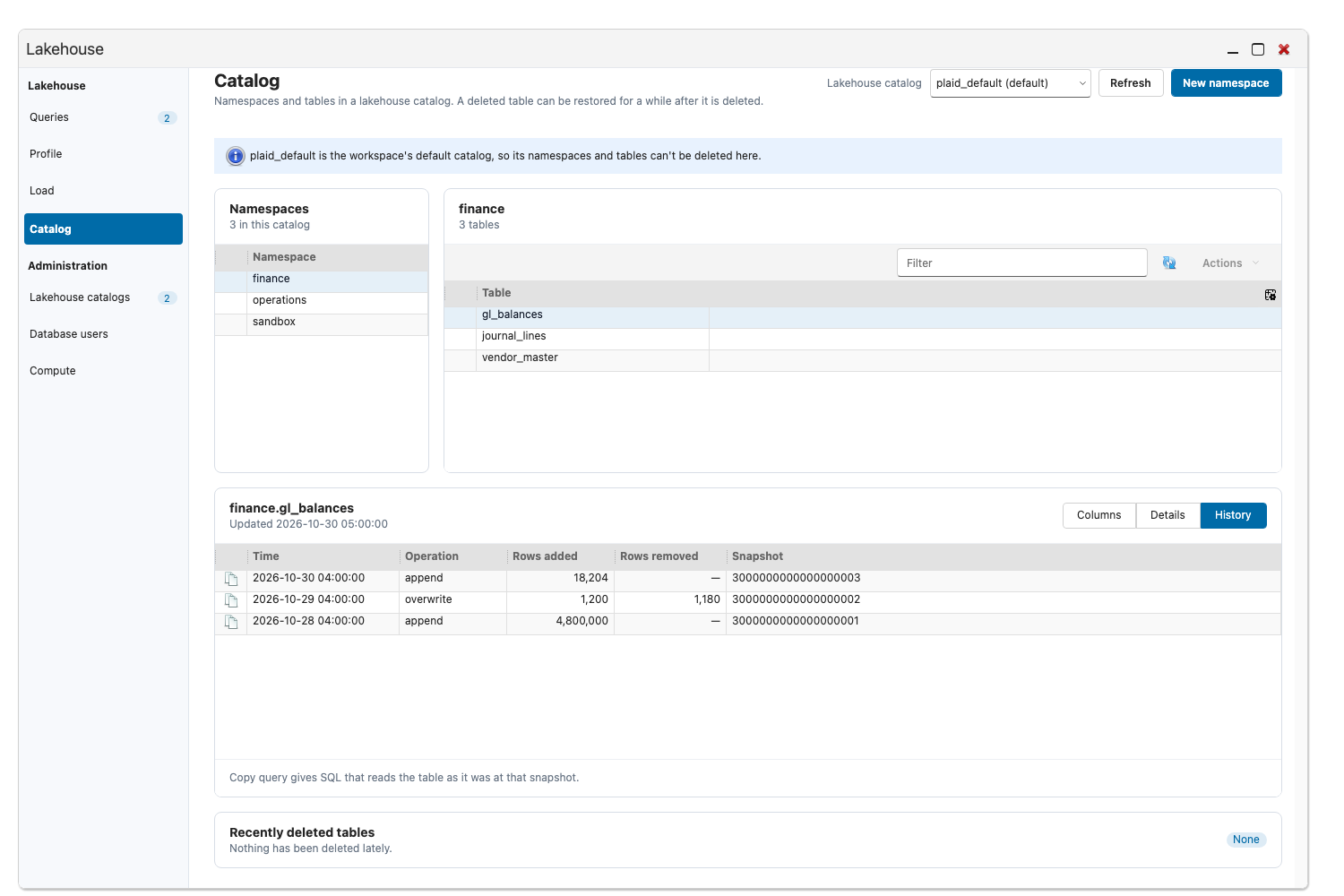
In History, use a snapshot row’s Copy query as of this snapshot action, the copy icon at the start of the row. It copies a query that reads the table as it was at that snapshot, using FOR VERSION AS OF, which you can paste into a query screen. Copying is offered for the default lakehouse catalog only. To browse or revert a table’s snapshots in Table Explorer instead, see Table Snapshots.
Lakehouse Catalogs, Database Users and Compute
Section titled “Lakehouse Catalogs, Database Users and Compute”Lakehouse catalogs lists the catalogs registered for your workspace. Browse on a catalog opens it in Catalog.
Database users lists the database users who can connect to the lakehouse and lets you add, change and remove them. Compute shows the health of the lakehouse compute nodes and offers Restart compute, a rolling restart for when queries are stuck. It replaces compute nodes one at a time, so queries running on a node being replaced fail while the other nodes keep serving new queries. A cooldown applies between restarts.