

Weave Tab — Findings and Weave AI Chat in One Place
Description
Section titled “Description”Every project has a Weave tab. Everything Weave has to say about the project, and your conversations with it, are in one place, each a tab of its own:
- Findings lists everything Weave has noticed about the project’s steps and workflows — the problems it found and the things it could not check — in Weave’s own words. From it you can read each finding in full, mark findings as read, open the step or workflow a finding is about, and open the AI fix assistant on a problem it can repair.
- Chat is Weave AI, a chat scoped to the project. Ask multi-step questions about your data, import files, build workflow steps and draw diagrams. Conversations persist, so they survive across sessions, browsers and devices.
The Weave button in the header counts the problems Weave has told you about that you haven’t read yet, across all your projects.
For what Weave checks and what its answers mean, see What Weave Checks. To ask the question finance teams ask on the days that matter — are the workflows a close depends on ready? — click Readiness on the toolbar in Findings; see Check Readiness Before a Close.
Open the Weave Tab
Section titled “Open the Weave Tab”There are four ways in:
- Open the project and select the Weave tab, next to Log.
- Click Open Weave on the message Weave shows when a workflow run ends. The tab opens on Findings, showing the findings about the workflow that ran, or all of the project’s findings when the message covers several workflows, whichever tab was in front and whichever app you were in when the message arrived.
- Click the Weave button in the header and choose a project. See The Weave Button in the Header.
- Follow a link to the tab. While the Weave tab is in front, the browser’s address bar holds a link to it, which you can bookmark or share with someone who can open the project. The link opens the tab on Findings for anyone who has it, and on Chat for anyone who doesn’t.
Everyone who can open the project has the Weave tab. Findings is there for anyone whose role lets them see the project’s steps and workflows; anyone else has the chats only, and the tab opens on Chat. Weave reads the whole project the first time Findings is shown, not when the project opens, so a large project can take a moment to list.
The Tabs in the Weave Tab
Section titled “The Tabs in the Weave Tab”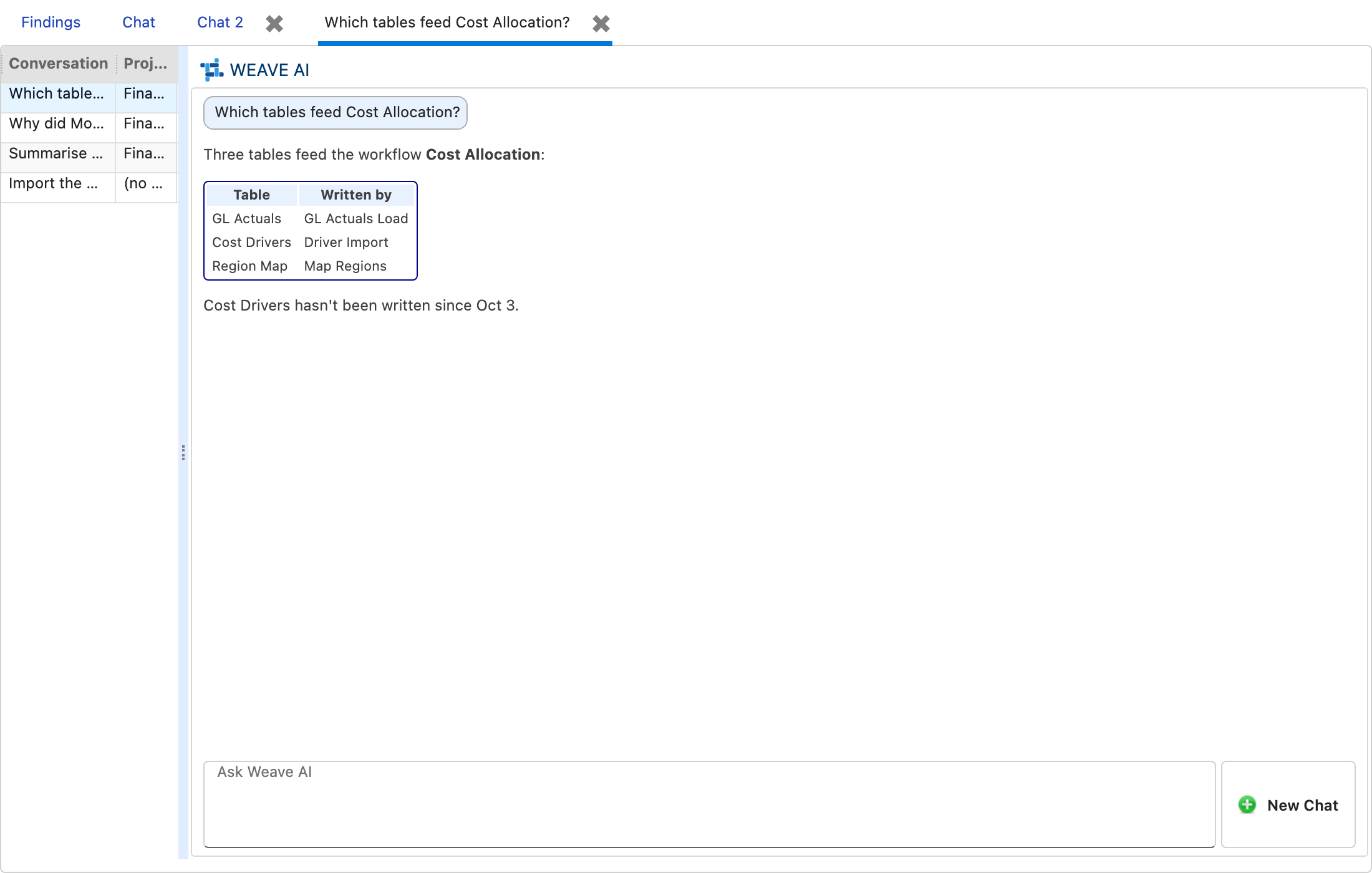
- Findings comes first, is in front when the Weave tab opens, and can’t be closed. Anyone without it starts on Chat.
- Chat is your first chat. It can’t be closed either.
- New Chat, beside the box you type in, opens another chat as a further tab — Chat 2, Chat 3 and so on — which you can close. A conversation you open from the history opens as a tab named after it.
- To name a chat, right-click its tab and choose Rename. Two chats can’t share a name.
- The conversation history sits at the left, under the tabs, beside whichever chat is in front. It is hidden while Findings is in front, so the findings have the width. Drag its edge to widen it; it keeps its width from chat to chat.
Clicking Fix on a finding opens the fix assistant in a window of its own; see Fix a Finding with the AI Assistant.
Findings
Section titled “Findings”What Findings Shows
Section titled “What Findings Shows”Under What Weave noticed, the two lines at the top are Weave’s summary of the whole project: how many of its steps and workflows Weave checked, what it found, and what it has no rule for. They carry their own counts, so the findings below are never mistaken for a verdict on the whole project.
Filter the Findings
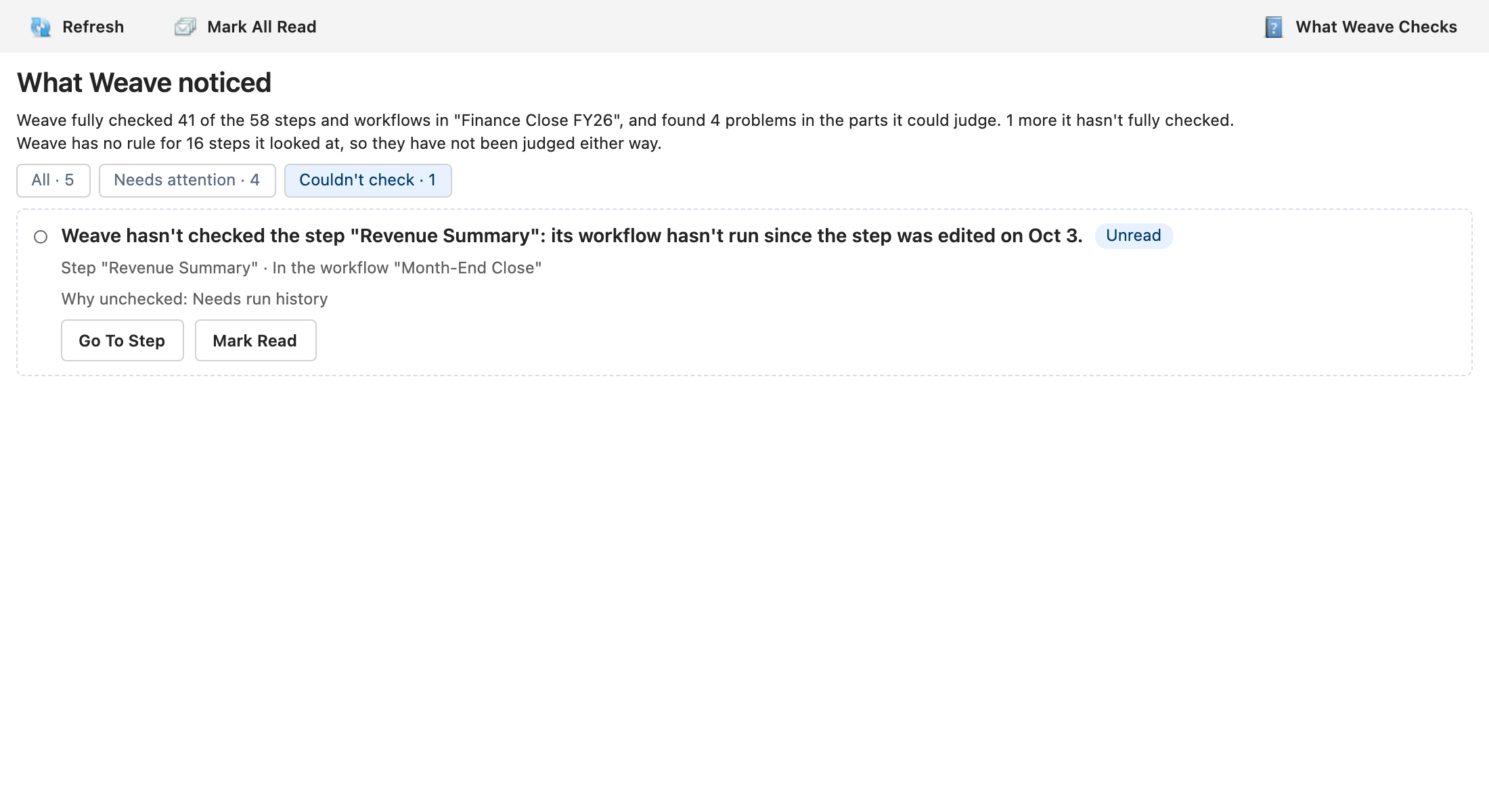
Section titled “Filter the Findings”The chips under the summary choose which findings are listed, and each says how many there are:
- All — every finding. This is where Findings starts.
- Needs attention — the problems Weave found.
- Couldn’t check — the things Weave could not check.
- Owned by me — the findings you own, whether someone assigned them to you or Weave picked you because you last ran or saved what they’re about. Like All, it includes the ones Weave couldn’t check, so it can count more than your row in Team. See Give a Finding an Owner.
When Findings shows one workflow’s findings, the counts are that workflow’s. A chip with nothing under it says so — for example Nothing listed under Couldn’t check.
Each Finding Is a Card
Section titled “Each Finding Is a Card”Problems are listed first and the things Weave could not check after them, in the order Weave reports them. A chip narrows the list but never reorders it.
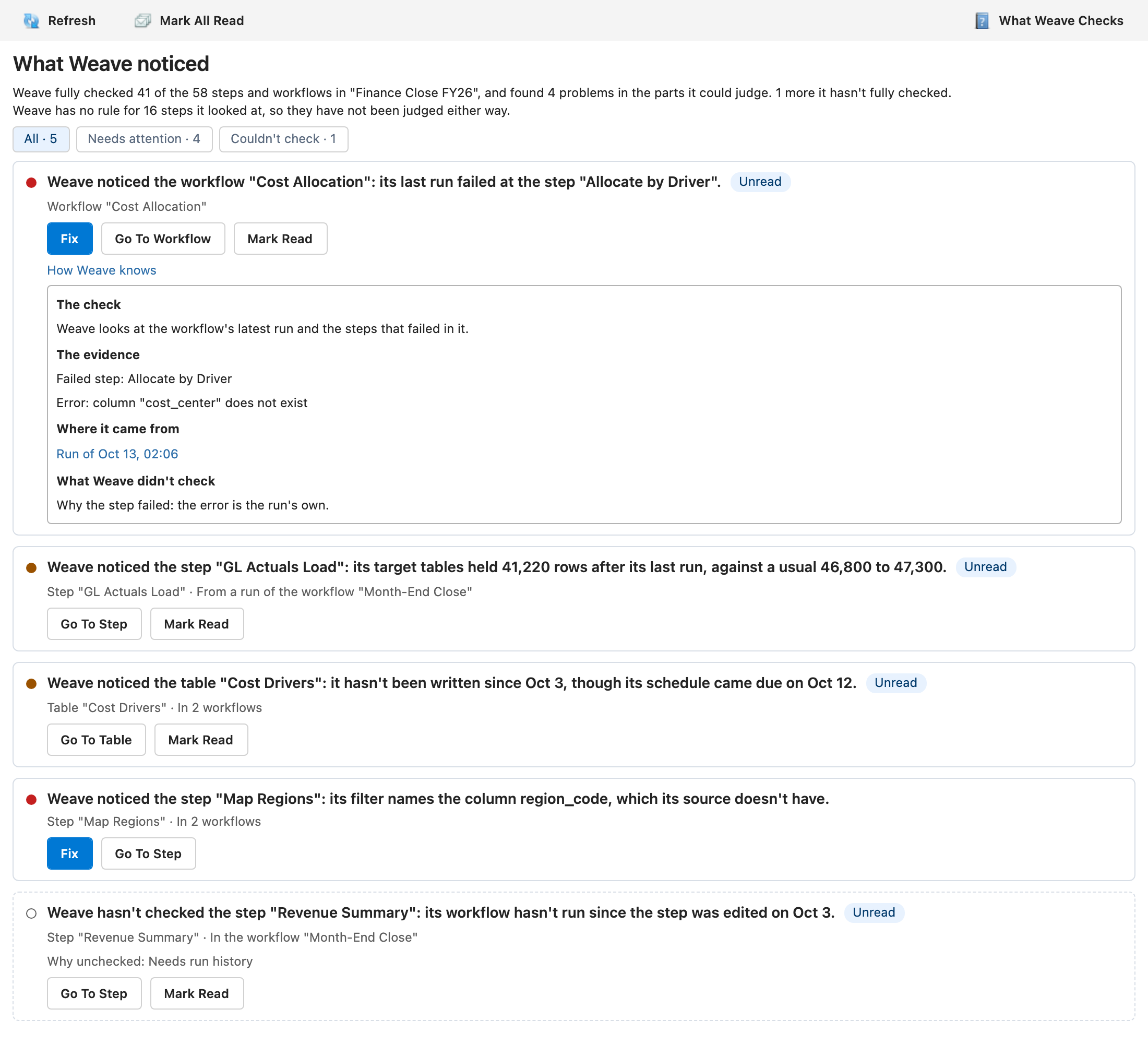
Each card shows:
- A mark — a red dot for a problem, an amber dot for something worth a look. A card for something Weave could not check has a dashed border and a hollow ring, so it never reads as a problem found.
- Weave’s sentence about the step, workflow or table, in full.
- What it is about — the step, workflow or table by name, then its workflow: In the workflow and its name, In 2 workflows for a step or table in more than one, or In no workflow. A finding about a step’s run says From a run of the workflow and the workflow whose run it was. A workflow your role doesn’t show you appears as a workflow you can’t see.
- Owner — who owns the finding, and why: ran it last for whoever last ran its workflow, changed it last for whoever last saved it, owns the dashboard for one of a dashboard’s owners, or just their name when someone assigned it. No owner when nobody who can see the finding can own it. When Weave recorded the problem being raised after a run, the line ends with when, such as raised 14 Oct 2026, 06:05. See Give a Finding an Owner.
- Why unchecked — for something Weave could not check, the reason.
- Unread — until you mark the finding read.
- Buttons — Fix where Weave can help repair the problem, Go To Step, Go To Workflow, Go To Table, Go To Metric or Go To Dashboard, Assign to choose who owns the finding, and Mark Read on an unread finding.
- How Weave knows — click it to open the check Weave ran, the evidence, where it came from and what Weave didn’t check. It starts closed. See How Weave Knows.
- Comments — what people have said about the finding. See Comment on a Finding.
A large project can have hundreds of findings, so Findings lists 20 cards at a time. Click Show 20 More Findings at the end of the list for the next ones — the button counts down when fewer are left.
The reasons a card can give after Why unchecked are:
- Not fully set up — the step or workflow is saved but not finished, such as an allocation with an empty column mapping or a workflow with no steps yet.
- Needs run history — Weave needs runs it has no record of: the workflow hasn’t run in the last 30 days, hasn’t run often enough to compare against, or its runs carry no empty-value counts.
- Needs more context — Weave lacks something it needs, such as a variable that is set differently in each workflow the step belongs to, or run history it could not read.
- Configuration it can’t read — the step’s configuration is in a shape this check does not read.
- The check failed — the rule itself could not run. The finding names the check by its title, such as Last run failed.
Show One Workflow’s Findings
Section titled “Show One Workflow’s Findings”Clicking Open Weave on the message Weave shows when a workflow run ends brings Findings to the front, even when a chat was in front, showing that workflow’s findings only, with a line above the list naming the workflow. Weave’s findings are read again when Findings opens this way. A finding about a table is listed under each workflow that writes the table. Click Show All to see the whole project again.
A workflow with no findings shows No Weave rule reported this workflow, and beneath it what Weave has no rule for across the project. That means no rule reported the workflow, not that every part of it was checked.
Mark Findings as Read
Section titled “Mark Findings as Read”- Click Mark Read on a card. The card loses its Unread mark where it is, so a How Weave knows you have open stays open.
- Click Mark All Read on the toolbar in Findings to mark every finding listed under the chip you have chosen, including any further down the list than the cards shown so far. When Findings shows one workflow’s findings, only those are marked.
Opening the Weave tab marks nothing read, and neither does being told about a finding when a run ends. Read state is yours alone.
A finding you have read can come back as unread. Weave treats a finding that says something new as a new finding — a run finding describes the run it came from, and a configuration problem that changes is a different problem — so it appears unread until you read it again. Findings about a workflow with no name or a duplicated step are identified more precisely than before, so some findings you had read can show as unread once. If a finding changed between the list loading and you marking it, Findings reloads the list.
Marking a finding read also stops it being mentioned in the message you get when a run ends, and takes it off the count on the header’s Weave button. See Being Told When a Run Ends.
Go to the Step, Workflow, Table, Metric or Dashboard
Section titled “Go to the Step, Workflow, Table, Metric or Dashboard”Click Go To Step, Go To Workflow, Go To Table, Go To Metric or Go To Dashboard on the finding’s card.
- A workflow opens on its canvas if it is an Advanced workflow, or on its Steps grid otherwise.
- A step opens inside its workflow with the step selected. When the step belongs to more than one workflow, Go To Step lists them by name under the button and you choose which to open — Weave never picks one for you.
- A step’s run finding opens the workflow whose run it was, since that is the run the finding is about.
- A step that belongs to no workflow you can see opens on its own.
- A table opens in Table Explorer. Go To Table isn’t offered if your role can’t read the project’s tables.
- A metric opens with its figures calculated for you. See Go To Metric.
- A dashboard opens in a new tab. Go To Dashboard isn’t offered if you can’t open dashboards.
Fix a Finding with the AI Assistant
Section titled “Fix a Finding with the AI Assistant”Click Fix on a finding’s card to open the AI fix assistant on it, in a window of its own. Fix is offered only on these findings:
- Allocation column mapping and Step expressions problems. The assistant starts from the problem Weave found in the step’s saved configuration.
- Last run failed, when one step failed in that run. The assistant opens on that step and starts from the error the run recorded. When several steps failed, fix each one from the project’s Log tab.
Steps that can run before the table they read is written also offers Fix when a connector is missing, but not for a step the canvas already runs first. This Fix isn’t the AI assistant: it opens the workflow’s canvas on Sync Dependencies, where you choose the connectors to add. It is offered if your role can edit workflows and read the project’s tables, and turning off the fix assistant doesn’t hide it.
When the step belongs to more than one workflow, Fix lists them by name and you choose one, as Go To Step does.
The assistant proposes a change and applies it only after you approve it, as it does from the Log tab. See How It Works.
- If the step has changed since Weave reported the finding, the assistant says the finding is no longer current. Click Refresh to see what Weave finds now.
- If a failed step has run again since that run, the assistant says the run’s error is no longer available.
- Each finding has a window of its own, so you can keep several open. Clicking Fix on a finding whose window is already open brings that window to the front.
- Closing the window reads Weave’s findings again, so a problem the fix resolved leaves the list.
Give a Finding an Owner
Section titled “Give a Finding an Owner”Every finding Weave reports has an owner, so it reaches the person who can fix it. Until someone assigns it, the owner is:
- whoever last ran the workflow the finding is about — for a scheduled run, whoever last saved its schedule;
- whoever last saved the workflow, if it hasn’t run;
- for a step in more than one workflow, or in none, whoever last saved the step;
- for a dashboard, one of its owners: whoever last changed it, if they are an owner, or otherwise the first of its owners in order of email address.
A finding about a table that more than one workflow writes has no owner until someone assigns one.
An owner is always an active member of the project whose role lets them open what the finding is about; for a dashboard, also someone who can open the dashboard. For the rows, empty-values and spread-of-values checks on a project with Row Access declared, it is also someone whose reads aren’t filtered. If the person Weave would pick isn’t, the finding says No owner.
To choose the owner, click Assign on the card and pick a name. The list shows only the people who could own the finding. Anyone you assign is told in a message that the finding is theirs, and it counts on their Weave button until they read it. To hand it back to the owner Weave picks, click Assign and then Clear Owner.
The owner you choose stays while the problem does, even when a run gives the finding new figures. It is cleared once a check run as one of the project’s Architects no longer finds the problem, as in the activity history; if the problem comes back, it starts again with the owner Weave picks. In a project where Weave’s findings go unread and unchecked for 90 days, owners chosen by hand go back to the ones Weave picks.
When a workflow run ends, Weave tells each problem’s owner about it. See Being told when a run ends. Problems that appear with nothing running are told to their owners by Weave’s hourly check. See Being told between runs. To see who owns what across the project, see See Who Owns What.
Comment on a Finding
Section titled “Comment on a Finding”Click Comments on the card to read what people have said about the finding and add your own, such as “Waiting on the SAP extract team”. Anyone who can see the finding can read and add comments.
A comment can’t be edited or removed once it’s added. Comments are kept in the project’s Weave activity history, with every change of owner, and stay with the problem: if it comes back, its earlier comments come back with it. As with every entry there, PlaidCloud leaves secrets out of a comment.
Mark a Finding as Expected
Section titled “Mark a Finding as Expected”Some warnings are normal for your business: a load that always runs light on Mondays, a table nobody writes in the last week of the quarter. Click This Is Expected on the card to tell Weave so. Add why in Why this is normal (optional), and pick a last day in Expected until (optional) if it is only normal for a while. Then click Mark as Expected.
From then on Weave leaves that problem out for everyone in the project: it isn’t listed in Findings, isn’t counted on the Weave button, and isn’t told at the end of a run or by the hourly check. The summary at the top of Findings says how many problems were left out this way, so they are never silently gone, and the step, workflow or table still counts as checked.
- This Is Expected is offered only to the project’s Architects, on an unlocked project, because it changes what everyone is told.
- It is offered only on warnings that can be normal for a business: a run slower than usual, rows, empty values or a spread of values unlike earlier runs, an import that found no files, a scheduled run that didn’t start or came due during a run, and a table not written on time. A failed run, a broken configuration and a finding Weave couldn’t check are always reported.
- It covers that one problem on that one thing: one workflow’s slow runs, one step’s rows in one workflow, one column’s empty values. Another problem on the same step is still reported.
- The day you pick is the last day it applies, in UTC. After it, Weave reports the problem again.
- A readiness check still counts a problem marked as expected, and says it was marked as expected.
Who marked it, when, why and until when is kept in the project’s Weave activity history, as is who stopped expecting it. As with comments, PlaidCloud leaves secrets out of the reason.
See What Weave Expects
Section titled “See What Weave Expects”Click Expected on the toolbar in Findings to see everything marked as expected in the project. Each row names the problem, says whether it is happening now (or Not happening at the moment.), and who marked it as expected, when, why and until when. Above the list, Weave says how many problems it held back this month because they were marked as expected, counting each problem once.
The list shows only what your role lets you open. To have Weave report a problem again, an Architect clicks Stop Expecting on its row.
See Who Owns What
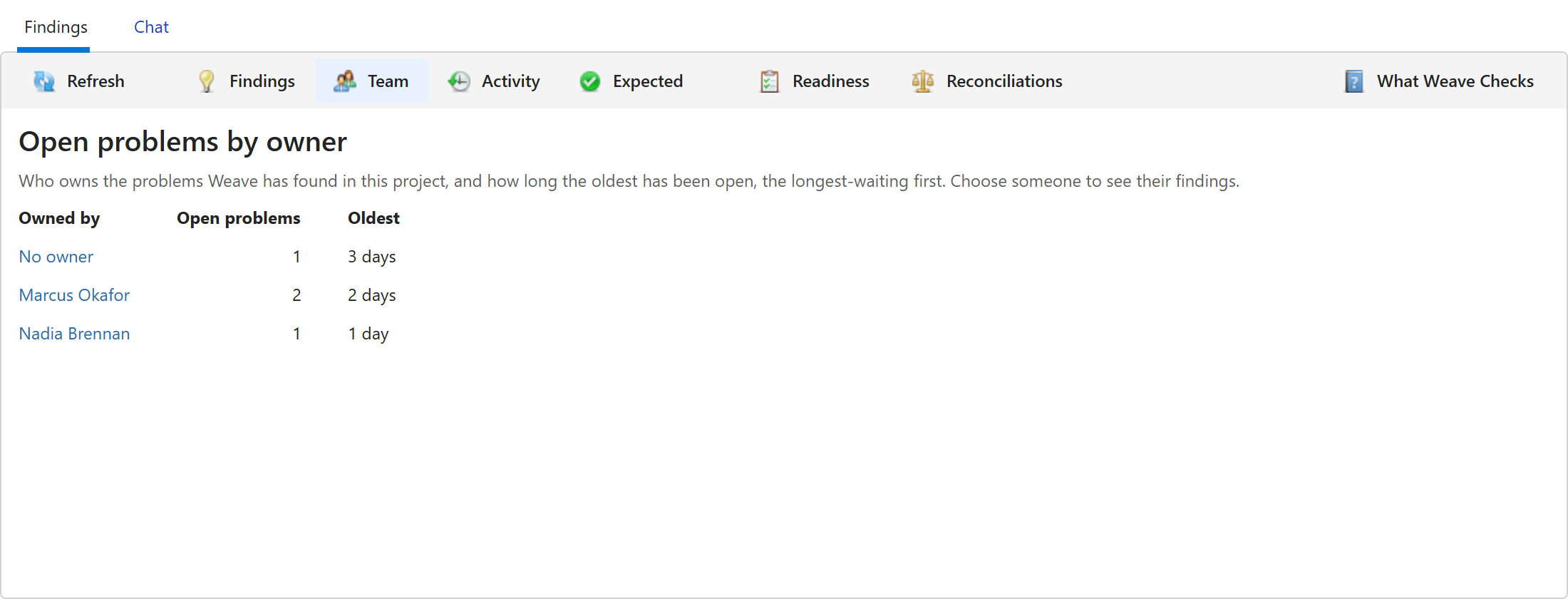
Section titled “See Who Owns What”Click Team on the toolbar in Findings to see who owns the project’s open problems. Each row is an owner, with how many problems they own and how long the oldest has been open, counted from when Weave recorded the problem being raised. The owner who has waited longest comes first. The problems nobody owns have a row of their own, No owner, so none is missed.
- A finding Weave couldn’t check isn’t counted, just as it isn’t on the header’s Weave button.
- A problem stays open until Weave no longer finds it. Reading it doesn’t close it.
- An owner none of whose problems has a recorded raise shows no age.
- Team counts the whole project, even when Findings shows one workflow’s findings.
- With no problem open, Team says Nothing listed under Needs attention., with Weave’s own summary of how much of the project it checked.
Click a name to see that person’s problems in Findings, under Needs attention, with a line above the list naming them. Click No owner to see the problems nobody owns the same way. Click Show All to see the whole project’s problems again, or the All chip for every finding. An owner you set with Assign counts straight away, in Team and on the Owned by me chip, without the list being read again.
See What Weave Did
Section titled “See What Weave Did”Click Activity on the toolbar in Findings to see the project’s history of what Weave noticed, proposed and changed, who approved each change and how it ended, and to export it as CSV or PDF. Click Findings to come back to the findings. See Weave Activity History.
Click Summary to see, month by month, how many problems Weave found, how many a later check no longer found, the changes it made and the problems marked as expected, with the entries behind each number. See Weave Monthly Summary.
When Weave Is Unavailable
Section titled “When Weave Is Unavailable”If Weave’s findings can’t be read, Findings says Weave is unavailable instead of showing an empty list, because an empty list would look like a project with nothing wrong. Click Try Again, or Refresh on the toolbar.
Click What Weave Checks on the toolbar in Findings to open What Weave Checks.
The Weave Button in the Header
Section titled “The Weave Button in the Header”The Weave button sits in the header at the top of every app, between Connect Your AI and Appearance. When Weave has told you about problems you haven’t read yet, in any of your projects, it shows how many beside its icon. Hover over it to see what the number counts, such as 16 problems Weave told you about that you haven’t read.
Click the button for a line for each project with unread problems, the project with the most first, such as Month End Close: 12 unread problems. Choose a line to open that project’s Weave tab on Findings, whichever app you are in. Opening it marks nothing read. A workspace administrator’s menu ends with Workspace Summary…, which opens every project’s monthly Weave numbers; see The Workspace Summary.
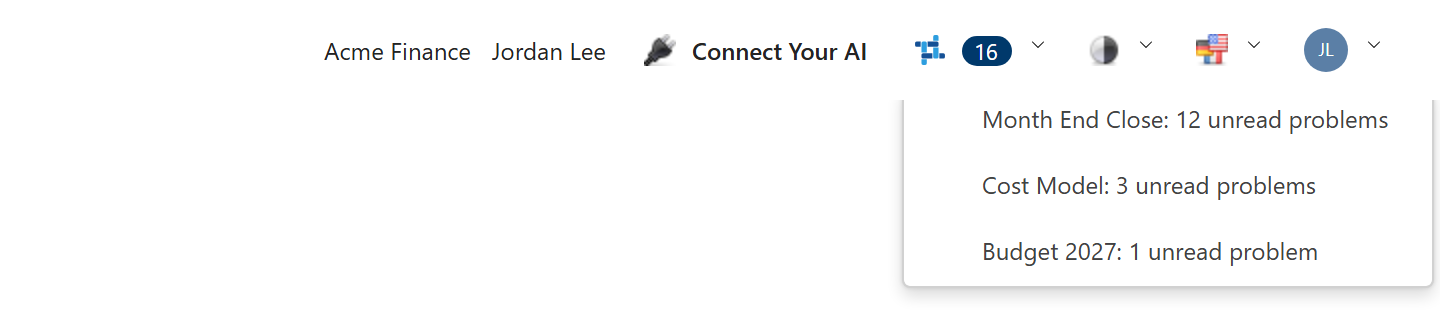
The button appears for anyone whose role lets them see a project’s steps and workflows, as Findings does.
What the Count Counts
Section titled “What the Count Counts”The count is the problems Weave has told you about in a message that you haven’t read yet in Findings. Weave tells you about a problem:
- in the message it shows when a workflow run ends — see Being Told When a Run Ends;
- in the message from its hourly check between runs — see Being Told Between Runs; and
- in the message that tells you someone has assigned a problem to you.
A problem Weave tells you about at the end of every run, such as a workflow that keeps failing, counts once. Once you have read it, it counts again only when Weave tells you about it again, as it does when a run finding describes a new run. Things Weave couldn’t check are never counted. A digest and a readiness reminder don’t add to the count. The count is yours alone, like read state.
With nothing to count, the button shows only its icon, and its menu says Nothing Weave told you about is unread. That means you have read everything Weave has told you about, not that your projects have no problems: a message covers only some of what Weave finds, and Findings lists everything.
When the Count Changes
Section titled “When the Count Changes”The count is read again when you sign in or reload the page, when a Weave message arrives, when Findings lists a project’s findings, and when you mark findings read there. It isn’t refreshed on a timer, so findings you mark read in another browser leave the count here until one of those happens.
Listing a project’s findings in Findings also brings that project’s count up to date, and so does Weave’s hourly check between runs, for each project where it looks for problems you own. Until one of them does, the count can still include a problem that has since been fixed, or that has been assigned to someone else. A problem Weave couldn’t check this time stays in the count, since Weave can’t tell whether it has been fixed.
A project you can no longer open, or one that has been deleted or is in the trash, is left out. A problem drops out of the count 90 days after Weave last told you about it, or 90 days after Findings or the hourly check last found it still a problem and unread, whichever is later.
Weave AI Chat
Section titled “Weave AI Chat”Start a Conversation
Section titled “Start a Conversation”- Select Chat in the project’s Weave tab.
- Click in the Ask Weave AI box at the bottom.
- Type your question and press Enter.
The assistant streams its response back, including any tool calls it made along the way. Click New Chat, beside the box, to start another conversation in parallel; it opens as a further tab.
Manage Past Conversations
Section titled “Manage Past Conversations”The history list beside the chat shows your conversations in this project, most recent first. A conversation from before conversations belonged to a project shows (no project) and appears in every project’s list. Conversations with the fix assistant aren’t listed.
To switch to a past conversation:
- Click the conversation in the history list.
- The full transcript opens in a new tab named after the conversation, or the tab it is already open in comes to the front.
To delete a conversation:
- Right-click the conversation in the history list.
- Select Delete Thread, then Delete.
Save a Conversation as PDF
Section titled “Save a Conversation as PDF”You can export the current chat — your prompts and the assistant’s replies, including tables, code blocks, and diagrams — to a PDF.
- Right-click anywhere in the conversation and choose Save as PDF.
- Your browser’s print dialog opens with the conversation laid out as a printable page.
- Choose Save as PDF as the destination and save the file.
Token Usage
Section titled “Token Usage”Every AI response shows the token usage for that turn — input tokens, output tokens, and a running total for the conversation. Use this to keep an eye on cost as you work.
Automatic Tool Selection
Section titled “Automatic Tool Selection”The assistant decides on its own which tools to call and which documents to consult for each question. There are no toggles to choose what’s used; tool selection happens behind the scenes, based on your prompt and the conversation so far.
If the answer doesn’t use the tool you expected, rephrase the question or include the table, project, or document name explicitly.
Business Numbers
Section titled “Business Numbers”In a conversation opened on a project, when you ask for a named business number, such as net revenue or headcount, the assistant is set up to look first for a metric definition: a calculation a project Architect has written. If one fits, the figures come from that definition, under your row access, rather than from a query the assistant writes. Words in your question for a breakdown, such as EMEA, are matched to the values the metric’s dimension holds, and when a word could mean more than one, the assistant asks which you meant. If no metric fits, the assistant queries the tables as usual.
Figures From a Metric
Section titled “Figures From a Metric”When an answer uses a metric, its figures appear in a card below the answer, separate from the assistant’s text. The card shows the figures as PlaidCloud calculated them, what was asked for (grouping, filters, period, and any comparison, share, ranking or running total) and when they were calculated, and says so when row access limited them.
A card for a metric carries a ✓ and reads Figures from metric followed by the metric’s name and (version N), such as Figures from metric Net Revenue (version 3). The ✓ means PlaidCloud calculated those figures from the metric’s definition. It belongs to the card alone: the assistant’s own text is not covered by the ✓, and a number it repeats in its answer never carries one. How Weave Knows marks the answer’s sentences separately.
A card shows no ✓, and says why, when you reopen a conversation and the metric, or a metric it is built from, has changed since the figures were calculated, is no longer available, or could not be checked.
A card shows up to 100 rows. When there were more, it says how many, and the ✓ covers only the rows it shows. An answer shows up to 10 cards and says how many more it left out. Reopening a conversation shows its cards again, unless you can no longer open the project. The ✓ appears only in the browser; the mobile app and assistants connected over MCP don’t show it.
What a Table, Step or Workflow Does
Section titled “What a Table, Step or Workflow Does”In a conversation opened on a project, Weave AI can read the documentation page Weave writes for a table, step or workflow — what writes and reads a table, what a step does and which workflows it is in, a workflow’s steps in order — and answer from it. The page is written from the project’s saved settings when Weave AI asks for it, and follows the same rules for what your role hides.
Row Access
Section titled “Row Access”On a project where an administrator has turned on Row Access, the assistant’s answers cover only the rows your security group is granted — the same rows you see anywhere else in PlaidCloud.
The assistant writes its own queries, and your grants are applied to each one before it runs. Where a question produces a query the grants cannot be applied to, the assistant tells you so and suggests what to ask for instead, rather than answering from data you are not cleared to see.
When your grants narrow one of those queries, the assistant is told so, and is instructed to treat what it found as your view rather than the whole table. It may say that your view is filtered, but not what is hidden, and it is told not to claim how many rows the table holds or that other values do not exist.
What Your Role Hides
Section titled “What Your Role Hides”A table, step, workflow or dimension can be hidden from the Manager or Explorer role. When the assistant reads the project’s lists of tables, steps, workflows or dimensions, it sees only the ones your role shows, the same as the project’s own lists. It can still work with a table it has just made for you, and still finds a workflow you name exactly when you import into it, rather than telling you either one doesn’t exist. If a step your role hides reads or writes a table you ask about, the assistant can tell you a hidden step uses it, but not which step. Nothing is hidden from an Architect.
How Weave Knows
Section titled “How Weave Knows”Under each answer, How Weave knows opens a panel showing what the assistant did to answer and how much of the answer rests on what it read:
- What Weave did — each step it took, such as reading your project’s tables and columns or running a query.
- Where it came from — each query it ran, which only reads data, with a note when row-level security limited the rows the query could read, and any table the answer names that you can open.
- Written by AI — each sentence of the answer, marked:
- Matched — every figure and name in the sentence also appears in what Weave read.
- Unmatched — the sentence has a figure or name Weave couldn’t find in what it read. The AI may have calculated or rounded it, or it may be wrong, so check it before you use it.
- Not checked — the sentence has no figures or names to look for.
- What Weave didn’t check — including a query that failed, or an answer given without reading your project at all.
Weave marks the sentences without using AI, by looking for each figure and name in
the results the assistant’s tools returned. A figure you typed in your question,
or one the query itself contains, doesn’t count as evidence. Matched is not a
guarantee: Weave doesn’t check that each figure is attached to the right name,
whether it rose or fell, or that a query asked the right question, and a common
figure can match by chance. A figure with a unit Weave can’t read, such as 10.5ms,
leaves its sentence Unmatched.
The panel is kept with the conversation, so it’s still there when you reopen it. A fix-assistant reply taken from PlaidCloud’s catalog of known errors says so, and that it wasn’t written by AI.
Multi-Step Requests
Section titled “Multi-Step Requests”You don’t have to split a task into separate messages. Ask for the whole thing at once and the assistant works through the steps in order, carrying the result of each into the next:
- “Find a table with cost data, then show me a few rows from it” — locates the table, then queries it
- “Which tables have margin data? Show me the rows where margin is negative” — finds the table, then filters it
- “Import the sales file from the Demo Data account and chart the monthly totals” — imports the file, then draws the chart
The assistant also remembers the conversation, so you can follow up without repeating yourself. After it shows a table, “now show only the negative rows” or “draw that as a chart” continues from what’s already there.
Before it makes a change, the assistant tells you what it’s about to do and waits for your go-ahead rather than guessing. That covers importing a file, building a step, creating a project, workflow or dimension, copying a table, changing a table’s properties, adding or removing labels, and destructive operations such as dropping or deleting data. Nothing is written until you approve. An import or export card names the table, document account and workflow it uses, and the assistant won’t offer one naming something that doesn’t exist or that you can’t open.
Your approval counts only in your very next reply. If you change the request instead, the assistant shows you the new version to approve rather than building the earlier one. Proposals name tables the way you do, never by internal id, and names with underscores, such as agg_freight_by_country, appear exactly as written in every AI chat, the expression assistant included.
Importing a File
Section titled “Importing a File”The assistant can load a file from one of your project’s document accounts into a new table, without building a workflow step. Tell it the account, the path, and a name for the new table:
- “Import /imports/customers.csv from the Demo Data account into a new table called Customers”
You can name Project Default as the account. The assistant reads from whichever account the project has set as its default, and an import or export step it builds keeps following that default if it changes. If the project has no default set, the assistant tells you so.
It first inspects the file and shows you the columns it detected, then waits for you to confirm before importing — your chance to catch a wrong file or an unexpected schema. Confirm, and it loads the table and reports the new table’s name, column count, and row count.
Nothing is created until you reply, and what runs is the plan you were shown rather than whatever was re-sent with your approval. If the assistant cannot pin something down — two tables share a name, or the account you gave does not exist — it asks instead of proposing a guess, so there is nothing to approve until it has an answer.
Building a Workflow Step
Section titled “Building a Workflow Step”The assistant can build a step that reads one table — or looks each of its rows up in a second one — and writes the columns you want into another table. Say what you want in plain language:
- “Add a step that totals claim amounts and claim counts by region for 2024, reading from Claims Cost by Line Region into Claims by Region”
- “Build a step that filters the claims table to 2025 and keeps only the line, region, and amount columns”
- “Create a step that looks each claim up in Rates on claim id and writes the rate alongside the amount”
- “Add a column that multiplies amount by rate, stored as a number”
Between them these cover keeping, renaming, dropping and computing columns, writing a fixed value, setting a column’s type, filtering rows, grouping with totals, and looking each row up in a second table. Name your tables however you normally say them — the assistant matches on the name you use, and asks which you meant if two tables share one.
It always proposes before it builds, and nothing is created until you reply. The summary is the whole of what you are agreeing to, so it spells out every choice the step makes: the tables it reads, each column it writes and — where that column isn’t a straight copy — what it was renamed from, which table it was taken from, what it computes, what fixed value it holds; the filter on the rows going in and any filter on the rows coming out; whether the step groups and what it computes for each group; the table it writes into; the folder it files the step under; and whether it joins a workflow. If the proposal isn’t what you meant, say what to change and it proposes again — and if anything it described has moved in the meantime, it asks you to approve the new version rather than building the old one.
A column the step computes, and one you give a fixed value to, are stored as text unless you say otherwise. Text doesn’t fail when you calculate with it — it sorts 9 above 10 and totals nothing — so the summary says which columns have no type set, and you can ask for one.
What a Lookup Does to Your Rows
Section titled “What a Lookup Does to Your Rows”When the step looks rows up in a second table, the summary also says what it matches on and what the match does to your rows:
- The match itself drops nothing. Every row of the first table carries through it whether or not it found a match, with columns from the second table filled in where there is one and left blank where there isn’t. A filter or a grouping can still change what comes out — that is what the rest of this list is about.
- A lookup never multiplies your rows. The second table is collapsed to one row per matching key before the join, so a key it holds twice cannot turn one of your rows into two.
- Where the second table does hold a key more than once, each column is filled in on its own, taking the smallest of the matching values for that column. The values you get can therefore be a combination that appears in no single row of that table. The summary says how many keys this affects and how many there are, so you can see whether it arises in your data at all — and says so plainly when it could not check.
- A filter runs after the lookup. A row that found no match has its second-table columns blank, so whether such rows survive depends on how your filter treats a blank.
- If the step also groups, the output is one row per group rather than one per row you started with. Where you group on a column that came from the second table, the rows that found no match are grouped under a blank value for it — a blank groups like any other value rather than being skipped.
Ask for everything from both tables and the step would write two columns under the same name, which it cannot do; name the columns you want instead, saying which table each comes from where both carry the name.
The step can write into an existing table or a new one. When the table is new, the proposal says so and says where it will go, and the table and the step are created together only after you approve; if you don’t approve, neither exists. The table is rebuilt from scratch every time the step runs — whatever is in it beforehand is discarded, so point the step at a table that holds only its output rather than one holding data you need. The summary says this too, naming the table it will replace. New steps are left unattached unless you name a workflow, and attaching to one is part of what you approve rather than something added afterwards.
Diagrams
Section titled “Diagrams”The assistant can draw a simple diagram to explain a process, a data flow, or how things relate — handy when a picture is clearer than a paragraph. Ask in plain language:
- “Draw a flowchart of an ETL: extract, transform, load”
- “Diagram how an order, a customer, and a line item relate”
- “Show the approval steps as a sequence diagram”
The diagram renders inline in the response as a picture, with a short plain-language description alongside it. The assistant draws a wide range of types and picks whichever fits the request — flowcharts, sequence and state diagrams, entity-relationship and class diagrams, pie charts, bar and trend charts, Sankey flows, quadrant charts, Gantt and timeline schedules, user journeys, mind maps, and more. The assistant won’t restyle a diagram (custom colours, fonts, themes, or branding) — for styled, shareable visuals, build a Dashboard instead.
Every diagram arrives as a picture. If one occasionally came back as a block of diagram source code rather than an image, that no longer happens — whichever notation the assistant chooses, the response renders it.
If a diagram genuinely can’t be drawn, the response shows the underlying diagram text along with a brief “Couldn’t render this diagram.” note — rephrase or simplify your request and ask again.
Expression AI
Section titled “Expression AI”Weave AI also works outside the Weave tab. The Expression Editor — used by Project Table, Calculate, Filter, and any other step that takes expressions — has it built in as a side panel.
- Open a workflow step that uses expressions
- Open the editor for the column you want to fill in
- The AI panel sits alongside the expression editor; ask it to draft, explain, or fix the expression
- Hover a suggested expression and open its menu to insert it at the cursor, append it, replace the editor’s contents, or copy it
The chat already has the column list and types from the current step, and the expression as it stands in the editor, so you can ask questions like “concatenate first_name and last_name with a space” or “fix this expression” without restating the schema or pasting the expression. Each message carries the editor’s text as it is at that moment, so after an edit, a follow-up question is about the edited version.
It also knows which lakehouse your project runs on. It suggests and checks the functions that lakehouse provides, and links to that lakehouse’s function reference, so the same request can give a different expression on a Databend project and a StarRocks one. Expression checks are available for Databend and StarRocks projects.
Every expression the assistant gives you is checked before you see it. If one breaks a rule the checker can judge from the expression alone — for example, a safe-divide guard such as div0 with a literal zero where the divisor belongs — the assistant withholds it and shows Expression withheld. with the reason in its place. Ask it to try again and it starts from that reason. The check does not judge column names, so a misspelled column is not caught here.