Table Update
Description
Section titled “Description”Updates the rows that match your filter and writes the result to a target table. Every source row reaches the target — the rows matching the filter with your new values, and every other row exactly as it was. The row count of the target always equals the row count of the source.
The filter chooses which rows are changed, not which rows come back. That is what separates this step from Table Extract, where the filter removes the rows that don’t match.
Update Parameters
Section titled “Update Parameters”Source and Target

To establish the source and target tables, first select the data table to be extracted from using the Source Table dropdown menu. Next, select either an existing table as the target table using the Target Table dropdown or click on the green “+” sign to create a new table as the target.
Table Creation
When creating a new table you will have the option to either create it as a View or as a Table.
Views:
Views are useful in that the time required for a step to execute is significantly less than when a table is used. The downside of views is they are not a useful for data exploration in the table Details mode.
Tables:
When using a table as the target a step will take longer to execute but data exploration in the Details mode is much quicker than with a view.
The target must be a different table from the source — this step reads every source row and writes it out, so pointing it back at its own source would append the result to the data it just read.
The target’s columns always mirror the source’s, so you never choose them. Columns you don’t update are carried through unchanged, including any column added to the source after this step was last opened.
Columns to Update
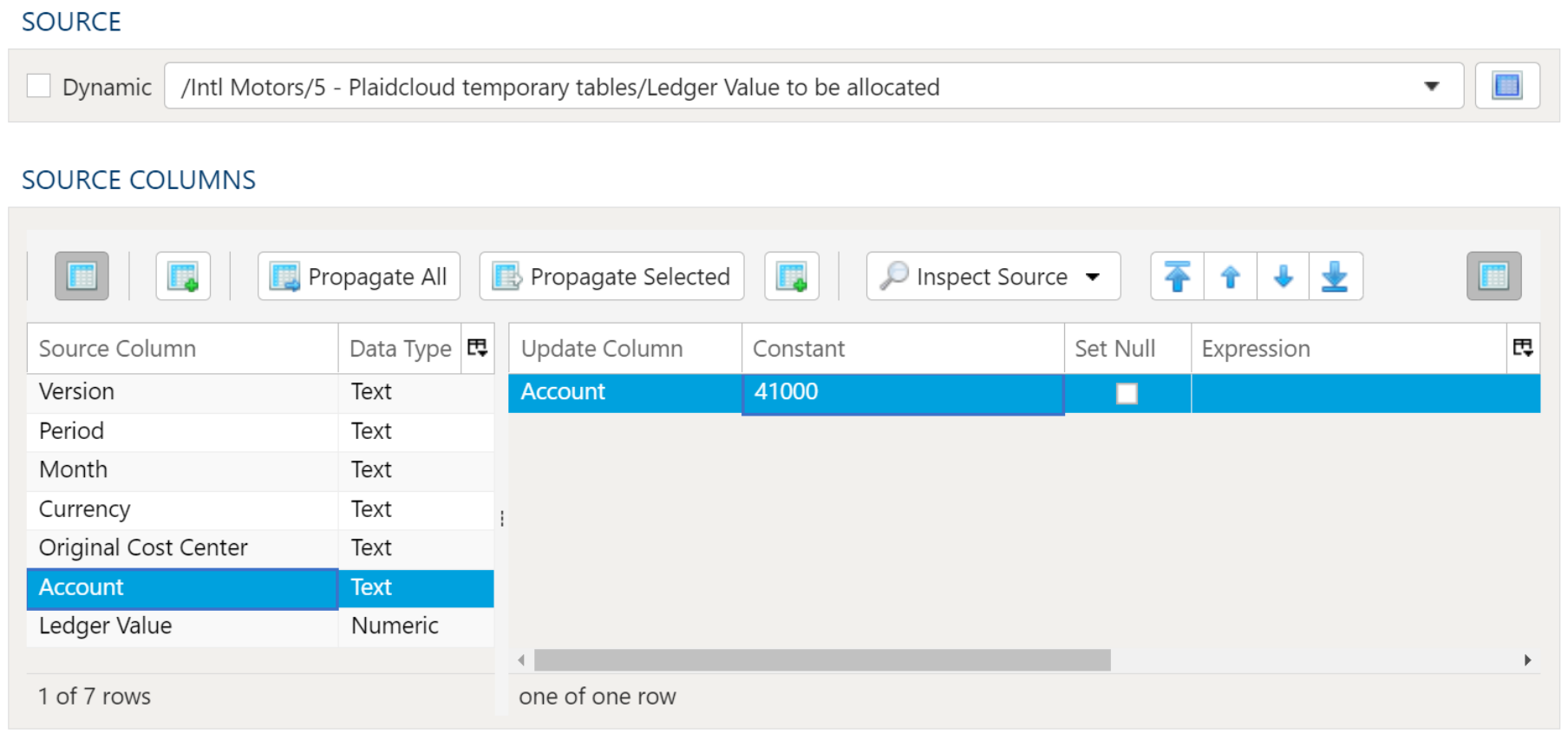
Section titled “Columns to Update”On the Table Data Selection tab, add a row for each column you want to change and set exactly one of:
- Constant — a fixed value.
- Expression — a calculation, which may reference other columns of the same row.
- Set Null — clears the column.
Columns you don’t list are left alone.
An Update Column that the source columns on the left don’t list is shown in red behind a ⚠ warning sign, even on a row with a Constant, an Expression or Set Null, because the step updates that column by its exact name. Saving with such a row opens a Stale Columns Found dialog that offers Remove All and Save, Save Anyway or Cancel.
Saving also checks each Update Column against the source table as it is now, by its exact name, whatever the source columns list. An Update Column the table doesn’t have is named in the Missing Source Columns dialog, because the step would fail on it when it runs. The source columns list itself isn’t checked against the table: this step reads the table as it is, not the list.
Data Filters for Update
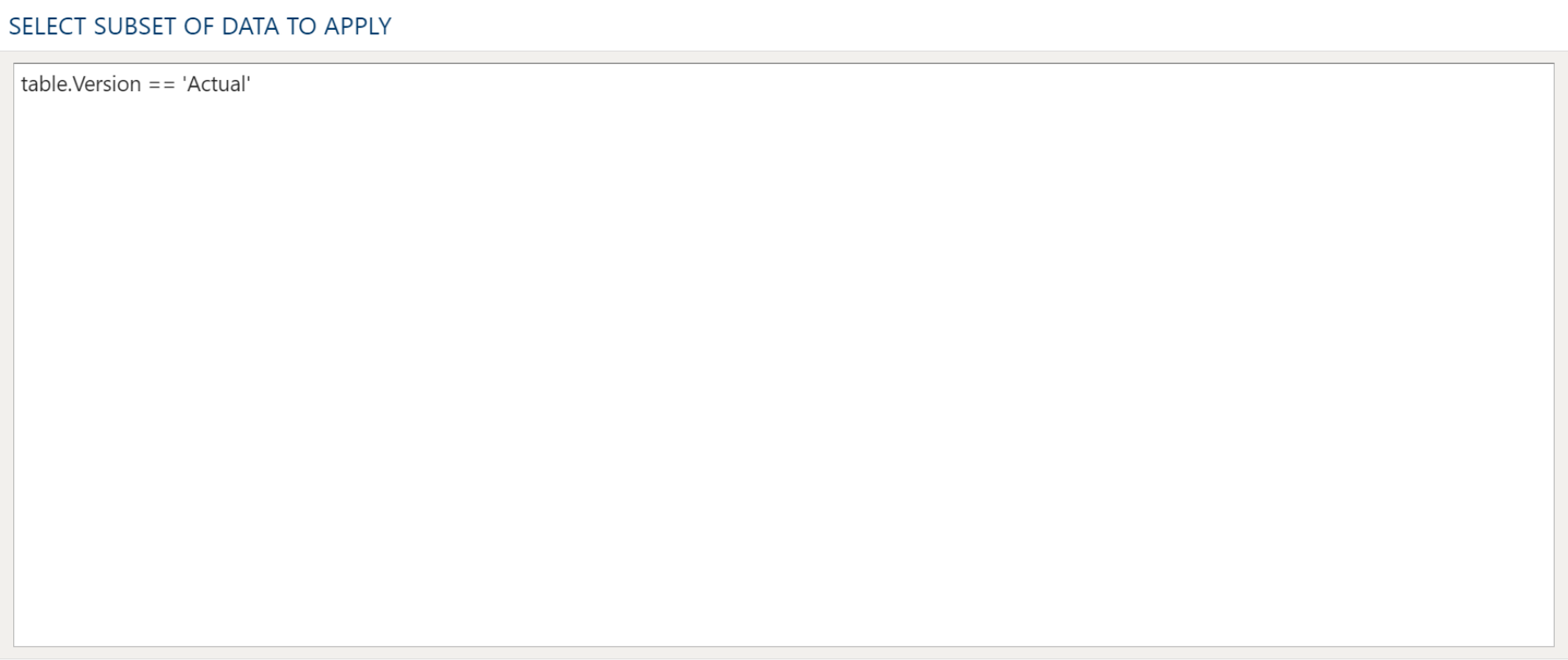
Section titled “Data Filters for Update”On the Data Filters for Update tab, enter the condition identifying the rows to change. Leave it empty to update every row.
A row whose condition cannot be evaluated — most often because a column it tests is null — is treated as not matching, and passes through unchanged. This matches how a database evaluates the same condition.
Examples
Section titled “Examples”In this example the Account is set to 41000 where the Version equals “Actual” in “Ledger Value to be allocated”. Rows with any other Version reach the target with their original Account.
The Table Data Selection tab, with Account set to a constant:
The Data Filters for Update tab, holding the condition that picks the rows to change: