

Table Outer Join
Description
Section titled “Description”Use to perform an outer join on 2 data tables, combining them into a single data table based upon the join key(s) specified. The Join Type control selects which unmatched rows to keep — a Left, Right, or Full Outer join. The default is a left join (every row from Table A, with Table B’s columns filled in where the keys match).
For more details on outer join methodology, see here: Wikipedia SQL Join
Table Data Selection
Section titled “Table Data Selection”Table Source
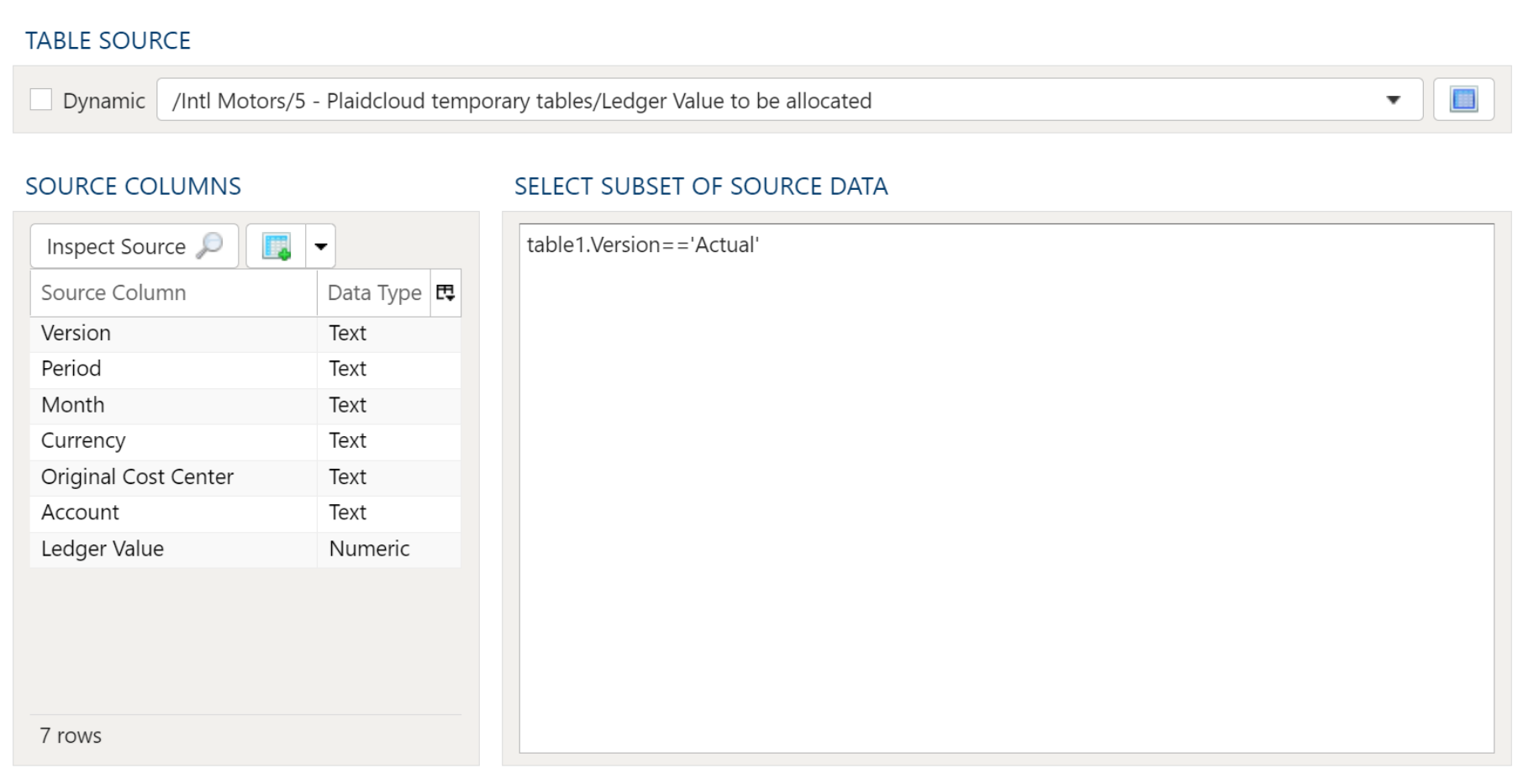
Specify the source data table by selecting it from the dropdown menu.
Source Columns
Specify any columns to be included here. Selecting the Inspect Source and Populate Source Mapping Table buttons will make these columns available for the join operation.
Select Subset of Source Data
Any valid Python expression is acceptable to subset the data. Please see Expressions for more details and examples.
Columns Named at Run Time
Section titled “Columns Named at Run Time”Select Also carry columns named at run time to pass through, unchanged, every source column the step doesn’t list, as the table has them when the step runs. Use it when an earlier step creates columns whose names depend on the data, such as a pivot, so you can’t list them when you build the step. Leave it off to write only the columns you list.
Table Output
Section titled “Table Output”Target Table

To establish the target table select either an existing table as the target table using the Target Table dropdown or click on the green “+” sign to create a new table as the target.
Table Creation
When creating a new table you will have the option to either create it as a View or as a Table.
Views:
Views are useful in that the time required for a step to execute is significantly less than when a table is used. The downside of views is they are not a useful for data exploration in the table Details mode.
Tables:
When using a table as the target a step will take longer to execute but data exploration in the Details mode is much quicker than with a view.
Join Map
Section titled “Join Map”
Specify join conditions. Guess fills the Join Map from the first of these that the two tables’ columns can take:
- the keys of another join step in this project that joins the same two tables
- the keys of an approved metric that joins them
- the key columns set on one of the tables, matched by name in the other
- the columns with the same name in Table 1 and Table 2
- columns whose names differ only in capitals or underscores, or an
idcolumn matched to a column named for its table, such ascustomer_idfor a table named Customers
A line under the map says which it used, until you change the map. Guess reads the tables’ columns, not their rows, so check the keys before you save. Inspect Source fills an empty Join Map the same way.
To add additional columns manually, right click anywhere in the section and select either Insert Row or Append Row, to add a row prior to the currently selected row or to add a row at the end, respectively. Then, type the column names to match from Table 1 to Table 2. To remove a field from the Join Map, simply right-click and select Delete.
Join Type
Section titled “Join Type”Choose how unmatched rows are kept:
- Left Join — keep every row from Table A; Table B’s columns are filled in only where the join keys match. This is the default.
- Right Join — keep every row from Table B; Table A’s columns are filled in only where the join keys match.
- Full Outer Join — keep every row from both tables, whether or not it has a match on the other side.
Check Keys
Section titled “Check Keys”Check Keys, next to Guess, counts the key values in the Join Map that appear on more than one row of a table. When a key value repeats in the table you join to, each row that matches it appears in the result once for each matching row, so the result can have more rows than the table you started from.
Which table is checked depends on the step:
- Inner Join and Table Lookup: Table 2.
- Outer Join: Table 2 for a left join, Table 1 for a right join, and both tables for a full join.
The answer appears under the Join Map. It gives the number of repeated key values and the rows that share them, and lists up to five of the most repeated. It counts:
- the table as it is now, after this step’s filter on that table;
- only the rows you can see, when row-level security limits what you see of the table. The answer says so;
- no rows with a blank key, because a blank key never matches another row. The exception is an Inner or Outer Join set to match blank keys to each other, as a join converted from Alteryx can be: there, blank keys count as a key value and can be listed as (blank).
Table Lookup never repeats a row. For a repeated key it keeps one row of Table 2, taking each column’s lowest value (the smallest number, the earliest date, the first text in sort order), so that row can mix values from different rows of Table 2. Check Keys tells you when that happens; to choose which values are used, make each key appear once in Table 2.
The check reads the table in your warehouse, so it runs only when you choose it, and it stops after 30 seconds. Changing either table, its filter, the Join Map or, on Outer Join, the Join Type clears the answer.
Target Output Columns
Section titled “Target Output Columns”Data Mapper Configuration
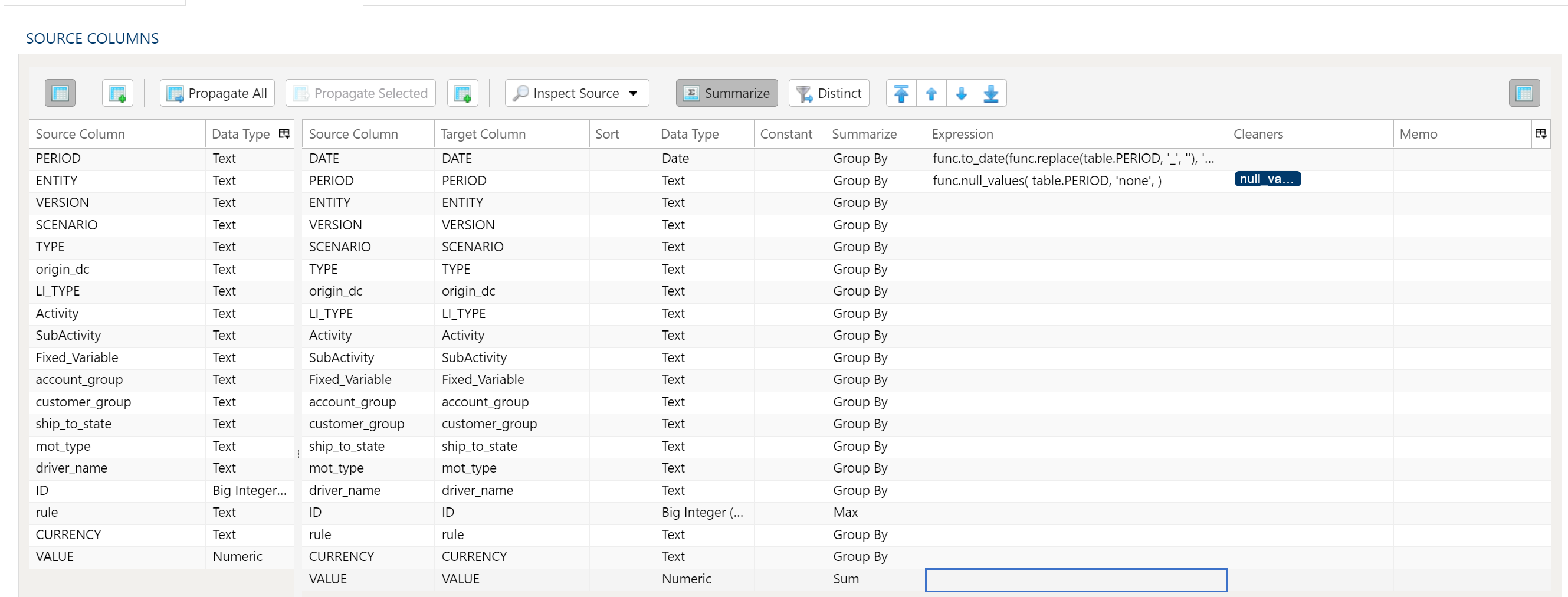
The Data Mapper is used to map columns from the source data to the target data table.
Inspection and Populating the Mapper
Using the Inspect Source menu button provides additional ways to map columns from source to target:
- Populate Both Mapping Tables: Propagates all values from the source data table into the target data table. This is done by default.
- Populate Source Mapping Table Only: Maps all values in the source data table only. This is helpful when modifying an existing workflow when source column structure has changed.
- Populate Target Mapping Table Only: Propagates all values into the target data table only.
If the source and target column options aren’t enough, other columns can be added into the target data table in several different ways:
- Propagate All will insert all source columns into the target data table, whether they already existed or not.
- Propagate Selected will insert selected source column(s) only.
- Right click on target side and select Insert Row to insert a row immediately above the currently selected row.
- Right click on target side and select Append Row to insert a row at the bottom (far right) of the target data table.
Deleting Columns
To delete columns from the target data table, select the desired column(s), then right click and select Delete.
Source Columns That Are No Longer Listed
A target row can name a Source Column that the source data table no longer lists, for example after the source was inspected again. The step never removes such a row for you. Instead, the column name is shown in red behind a ⚠ warning sign, and hovering over it says the column is not in the source columns. In a step with several tables, such as a union, each table is checked against its own source columns.
A row with a Constant, an Expression or a Count (including nulls) summary is never flagged, because the step doesn’t read its source column. Nothing is flagged while the source data table lists no columns, for example before the source is first inspected.
When you save a step that still has flagged rows, a Stale Columns Found dialog lists them under the tab or table they are on, and offers three choices:
- Remove All and Save — remove the flagged rows, then save.
- Save Anyway — save the step as it is.
- Cancel — go back to the step without saving.
To keep a row and clear its warning, add the column back to the source data table, or pick a column the source data table lists.
Column Data Type
Every target column carries a Type. A column propagated from the source keeps the source column’s type; a row you add by hand starts as Text, and you set Type to say what it should actually be — a column you intend to sum or sort needs its numeric or date type, because text sorts and sums as text.
A step saved with a column that has no type at all still runs. The type is worked out when the step starts, from the source column that column reads. Where there is nothing to read it from, it is treated as text: an Extract SQL step’s columns come from the query you wrote rather than from a mapped source, and where several sources carry the same column name under types that disagree, text is used rather than guessing one of them — a wrong guess produces a conversion the warehouse can reject, and anything converts to text.
Setting Type yourself is still how you say what a column should be. Leaving it unset means accepting whatever the source column happens to be.
Changing Column Order
To rearrange columns in the target data table, select the desired column(s). You can use either:
- Bulk Move Arrows: Select the desired move option from the arrows in the upper right
- Context Menu: Right clikc and select Move to Top, Move Up, Move Down, or Move to Bottom.
Reduce Result to Distinct Records Only
To return only distinct options, select the Distinct menu option. This will toggle a set of checkboxes for each column in the source. Simply check any box next to the corresponding column to return only distinct results.
Depending on the situation, you may want to consider use of Summarization instead.
The distinct process retains the first unique record found and discards the rest. You may want to apply a sort on the data if it is important for consistency between runs.
Aggregation and Grouping
To aggregate results, select the Summarize menu option. This will toggle a set of select boxes for each column in the target data table. Choose an appropriate summarization method for each column.
When Inspect Source fills the columns, a number column starts as Group By rather than Sum if its name reads as an identifier, such as id, customer_id, Order No or CustomerKey, if its table sets it as a key, or if the join uses it as a key.
- Group By
- Sum
- Min
- Max
- First
- Last
- Count
- Count (including nulls)
- Mean
- Standard Deviation
- Sample Standard Deviation
- Population Standard Deviation
- Variance
- Sample Variance
- Population Variance
- Advanced Non-Group_By
For advanced data mapper usage such as expressions, cleaning, and constants, please see the Advanced Data Mapper Usage
Stale Columns
Section titled “Stale Columns”A Join Map or Target Output Columns row can name a column that the step’s Source Columns tab no longer lists, for example after a source’s columns were inspected again. The step never removes such a row for you. Instead, the column name is shown in red behind a ⚠ warning sign, and hovering over it tells you which source’s list is missing the column.
A Target Output Columns row with a Constant, an Expression or a Count (including nulls) summary is never flagged, because the step doesn’t read the row’s source column. Nothing is checked against a source whose list is empty, for example one that was never inspected.
When you save a step that still has flagged rows, a Stale Columns Found dialog lists them by table and offers three choices:
- Remove All and Save — remove the flagged rows, then save.
- Save Anyway — save the step as it is.
- Cancel — go back to the step without saving.
To keep a row and clear its warning, add the column back to that source’s list on the Source Columns tab, or pick a column the list contains.
When you save, each source table is also checked as it is now. A column that a source’s list holds but its table doesn’t have opens a Missing Source Columns dialog naming the table and the column, with Save Anyway or Cancel. When rows are flagged as well, both appear together in the Stale Columns Found dialog. See Columns Missing From the Source Table.
Output Filters
Section titled “Output Filters”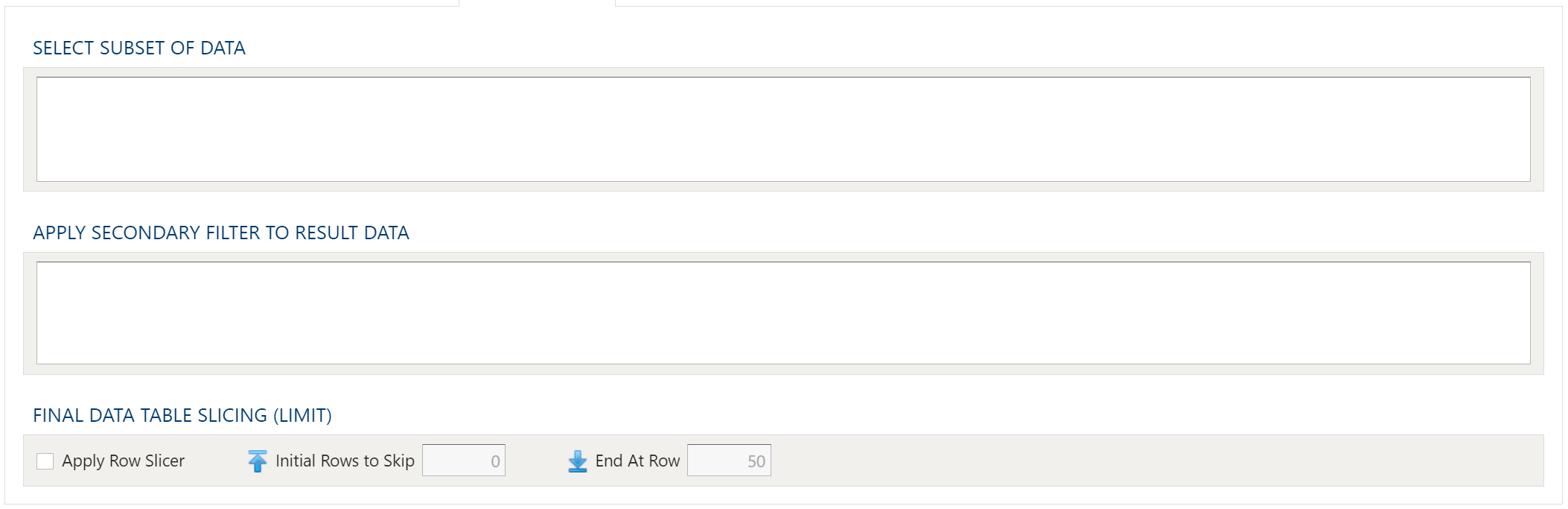
To allow for maximum flexibility, data filters are available on the source data and the target data. For larger data sets, it can be especially beneficial to filter out rows on the source so the remaining operations are performed on a smaller data set.
Select Subset Of Data
This filter type provides a way to filter the inbound source data based on the specified conditions.
Apply Secondary Filter To Result Data
This filter type provides a way to apply a filter to the post-transformed result data based on the specified conditions. The ability to apply a filter on the post-transformed result allows for exclusions based on results of complex calcuations, summarizaitons, or window functions.
Final Data Table Slicing (Limit)
The row slicing capability provides the ability to limit the rows in the result set based on a range and starting point.
Filter Syntax
The filter syntax utilizes Python SQLAlchemy which is the same syntax as other expressions.
View examples and expression functions in the Expressions area.
Examples
Section titled “Examples”Join Automobile Manufacturers With Models
Section titled “Join Automobile Manufacturers With Models”In this example, consider the following source data tables. First is a list of automobile manufacturers.
| Mfg_ID | Manufacturer |
|---|---|
| 1 | Aston Martin |
| 2 | Porsche |
| 3 | Lamborghini |
| 4 | Ferrari |
| 5 | Koenigsegg |
Next is a list of automobile models with a manufacturer ID. Note that there are several models with no manufacturer.
| ModelName | Mfg_ID |
|---|---|
| Aventador | 3 |
| Countach | 3 |
| DBS | 1 |
| Enzo | 4 |
| One-77 | 1 |
| Optimus Prime | |
| Batmobile | |
| Agera | 5 |
| Lightning McQueen |
To get a list of models by manufacturer, it makes sense to join on Mfg_ID. By leveraging outer join concepts, the output will also be able to show those items which do not have any matches.
First, specify parameters for Table 1 Data Selection. The source data table is selected and all columns are listed.
Next, specify parameters for Table 2 Data Selection. Once again, the source data table is selected and all columns are listed.
Finally, the join conditions are set in the Table Output tab. Using the Guess button, Analyze properly identifies the Mfg_ID column to use as the Join Key. Because this example keeps unmatched rows from both tables, set the Join Type to Full Outer Join. Lastly, the
Target Output Columns are specified automatically using the Propagate button. This effectively includes all columns from all tables, with any join columns obviously only being included a single time. Note that the columns are sorted alphabetically, first by Manufacturer and next by ModelName.
As expected, the final output includes all rows from both tables, whether they had a match in both tables or not. As such, this time Porsche does indeed show up despite having no models. Additionally, Batmobile, Lightning McQueen, and Optimus Prime are included in the results even though none of them have a manufacturer. Besides, who can say ‘No’ to them?